

Who took what and when. SmartBox remembers.
The program that runs dispensing machines: it checks permission and allowance at every withdrawal, records the issue with a name and time, and shows stock levels for all machines in one panel.
- identification at every withdrawal
- badge / PIN
- issues without a network, with full permission and stock
- offline
- for reports: PDF, XLSX, CSV, XML
- 4 formats
- machines per screen
- up to 15
Offline mode and export formats — from the SmartBox 1.7 documentation. Number of machines per screen — DynaBox data sheet.
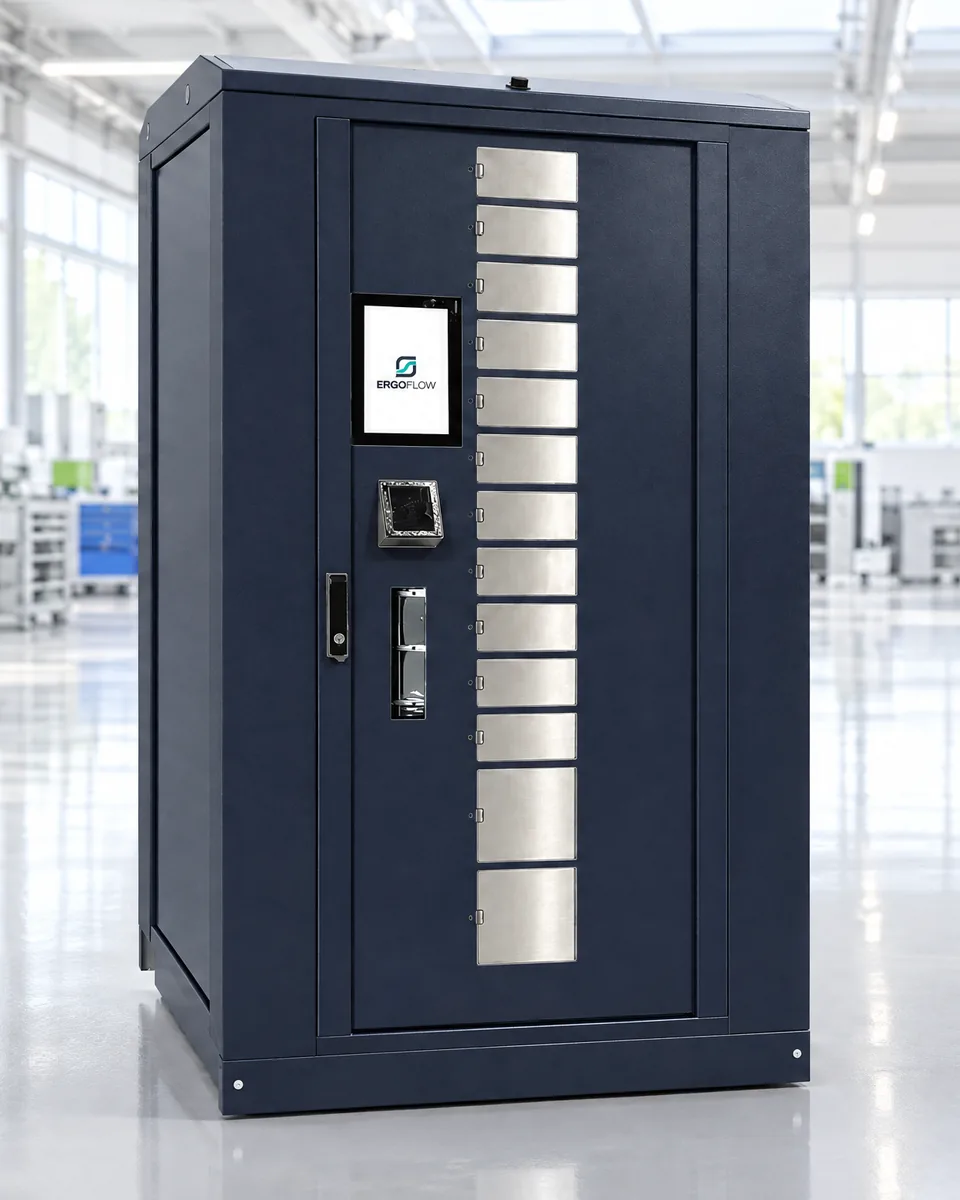
- SmartBox kiosk — login, selection, allowance
- Reader — badge or PIN
- Compartment — opens after authorisation
- Panel — stock level goes down immediately
A machine without software is a cabinet with a key
The machine will issue. Only the program knows who is allowed, how much and when — and remembers what happened.
A withdrawal without a name
Gloves go off the shelf, but nobody knows who took them or how many. The conversation about consumption starts with guesswork.
The allowance in the storekeeper’s head
“One pair per shift” works as long as the storekeeper is there and remembers.
Stock level known after a stocktake
An item runs out in the middle of the night shift because nobody saw it going faster than usual.
Go through an issue on real screens
This is what a withdrawal at the machine looks like: badge, item selection with an allowance, compartment opening, history entry. Click and go through it yourself.
Real SmartBox kiosk screens (version 1.7, ErgoFlow theme). The employee, items, stock levels and compartment numbers are sample data — this is not a view of a working machine or of customer data.
- 1IdentificationBadge at the reader or a PIN. Without it, the machine issues nothing.
- 2Selection and allowanceThe employee sees only their own items and how much they are still entitled to. An exceeded allowance blocks the withdrawal.
- 3IssueThe machine opens the compartment holding the item. With a drum, it first rotates the column to the window.
- 4RecordWho, what, how many, when and from which compartment. The stock level in the panel goes down immediately.
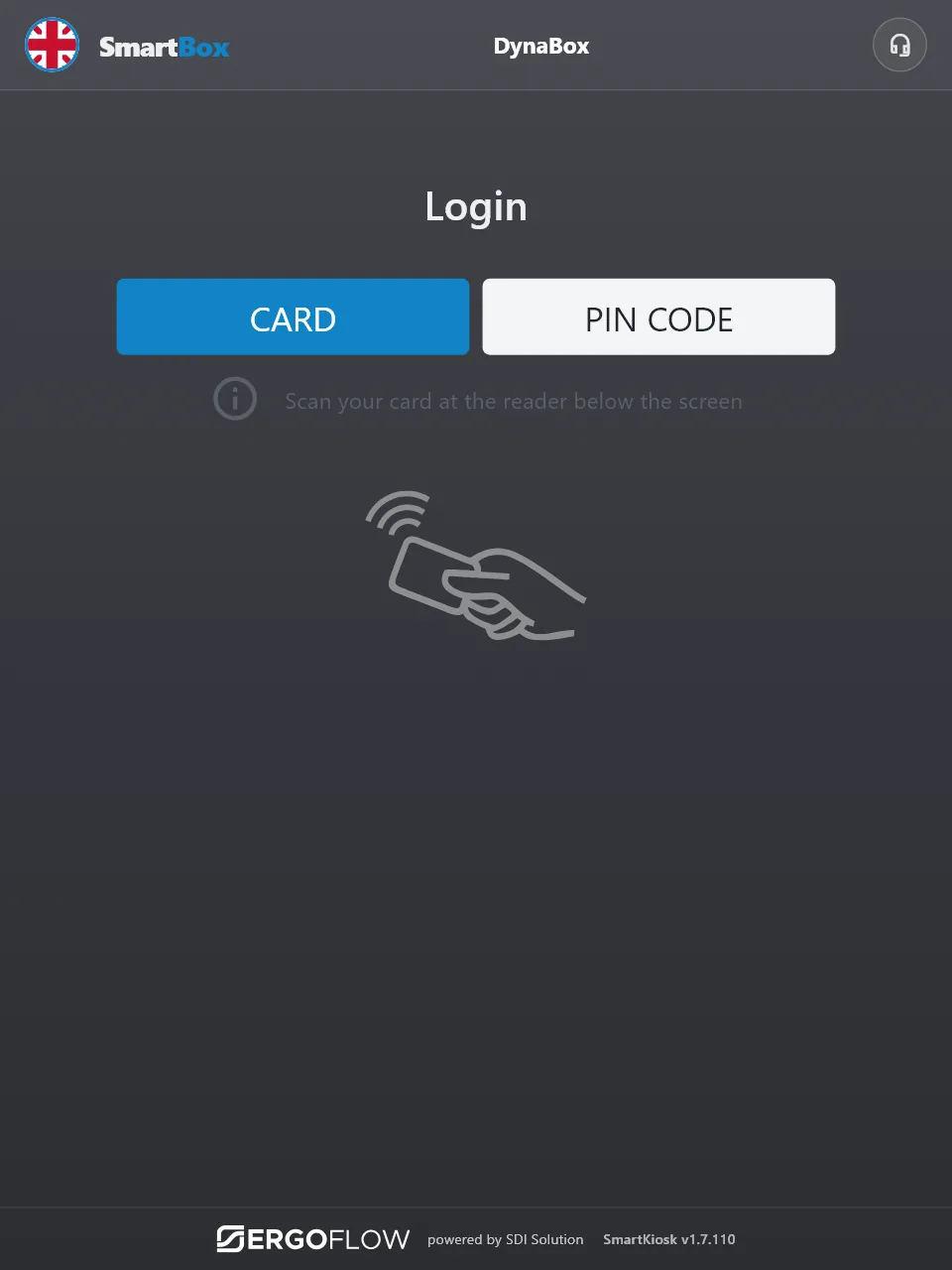
Tap your badge — click the reader below the screen.
The drum is waiting for an item to be selected on the screen.
| Time | Employee | Item | Quantity | Compartment | Status |
|---|---|---|---|---|---|
| An entry will appear here after the issue. | |||||
One program, four reasons
Everyone in the company looks at issuing from a different angle. Choose yours.
Protective equipment goes only to the person entitled to it
- Permissions per person, workstation and department.
- Allowances per item and period, e.g. one pair per shift.
- History: who took a protective item and when.
In SmartBoxissues per person with date and item.
Material by the machine, at any time
- Withdrawal without a counter, on the night shift too.
- Employees see only what is assigned to their workstation.
- Shortages show up in the panel before an item runs out.
In SmartBoxstock levels for every machine and replenishment thresholds.
Ordering from data, not from a phone call saying “it’s running out”
- Consumption per person, department, shift and item.
- An alert in the panel when an item drops below its threshold.
- Machines at several sites in one panel.
In SmartBoxa report of the most frequently withdrawn items and trends.
Data in the company system instead of another spreadsheet
- Export to PDF, XLSX, CSV and XML.
- API for your applications, employee import from Excel or CSV.
- Stock levels and issues in the ERP or WMS via SmartSync — scope agreed during rollout.
In SmartBoxissue costs by workstation and employee.
What works straight away and what we will agree
We don’t promise integrations that don’t exist. Every item has its own status.
- in SmartBoxworks in the program today
- as part of rolloutwe set it up for you at launch
- to be agreedscope depends on your systems
- Employee and group importin SmartBox
Import wizard for Excel or CSV.
- API for external systemsin SmartBox
Access to SmartBox data for your applications, token-based.
- Report exportin SmartBox
PDF, XLSX, CSV and XML — for spreadsheets and reporting systems.
- Panel login via SSOin SmartBox
Administrator login via Keycloak. Connecting Active Directory is agreed separately.
- SupplyPoint Systems softwarein SmartBox
Reading data from SupplyPoint into SmartBox.
- ERP and WMSas part of rollout
Stock levels and issues in your ERP or WMS — via API or SmartSync. The scope depends on the system.
- Remote machine servicing (SmartConf)as part of rollout
Controller status, error codes and service tasks remotely, without a VPN.
- E-mail and SMS notificationsto be agreed
Today, stock alerts are in the panel. Message sending is agreed during rollout.
- HR and time trackingto be agreed
Employee synchronisation with the HR or time and attendance system — depends on the system.
Machines run by SmartBox
Before you ask
Does SmartBox replace an ERP?
No. SmartBox does not issue purchase orders to suppliers or invoices. It passes stock levels and demand to the system that does — via API or the SmartSync module.
What happens when the network goes down?
The machine keeps issuing items the employee has full permission for and that are in stock. The history is sent once the connection is back.
Does it work without an ErgoFlow machine?
SmartBox runs DynaBox, LockerBox, CycleBox and DrawerBox, and it can read data from SupplyPoint Systems machines. We check other devices at the audit.
How many machines can one panel handle?
All of them in the company, including across several sites. Up to fifteen machines can stand at one kiosk screen (DynaBox manufacturer’s data).
Book a SmartBox demo
We will show the kiosk, the panel and an issue using examples from your product range. The call ends with a list of items and rules that make sense for you.
- A short callAbout what you issue and how it works today.
- DemoThe machine and SmartBox on your own examples.
- ProposalDrum configuration, rollout model and quote.