

SmartStock
Browser-based warehouse software for JUMPER vertical lift modules: it calls the tray to the workstation, the LED strip lights up the cell to pick from, and the movement is posted only after the operator's OK. It works on G-Stock data, so switching over requires no conversion.
- The cell lights up
- Posted on the operator's OK
- The same data as G-Stock
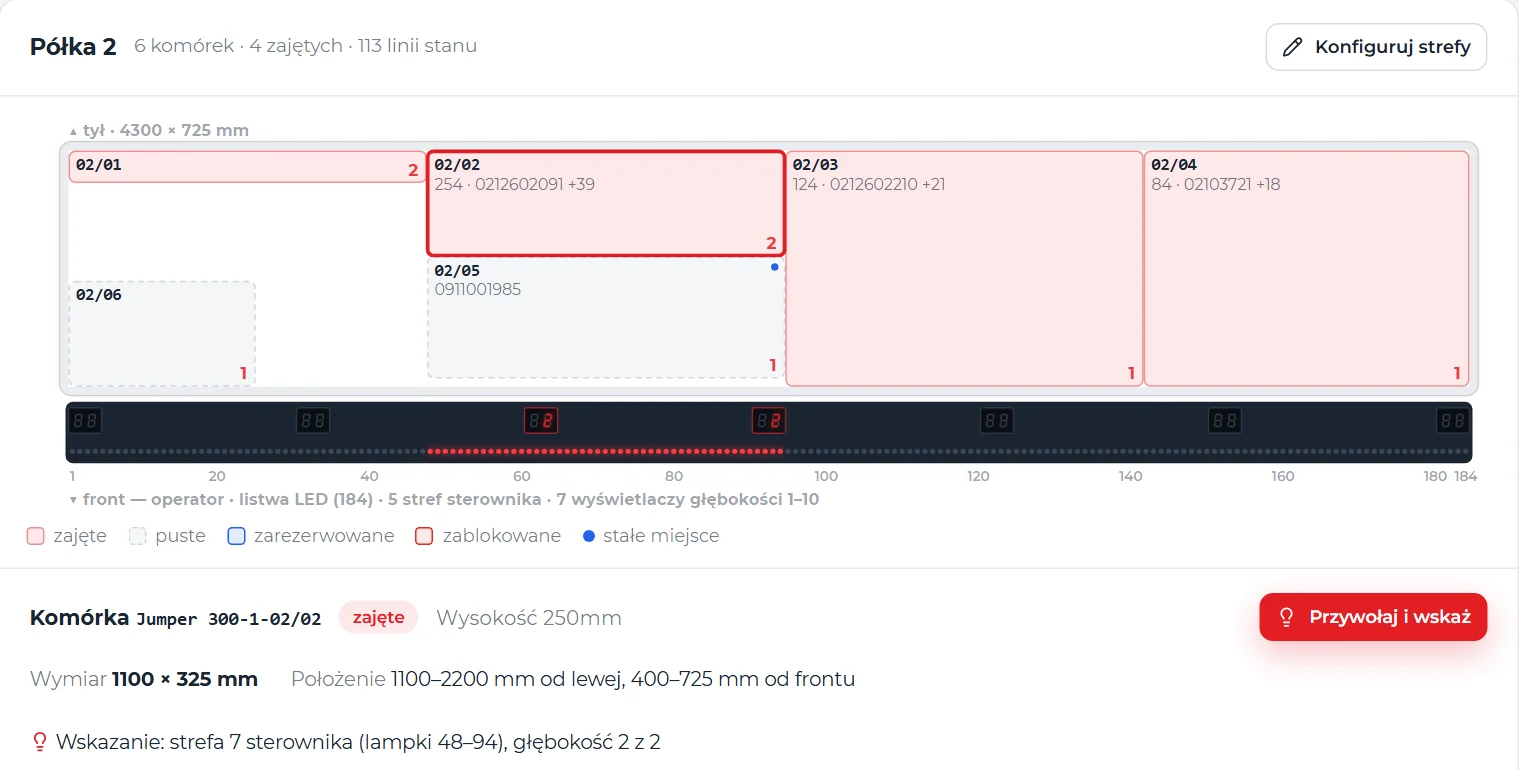
SmartStock manages the item master, stock by address, orders and movement history — and controls the vertical lift module. The operator selects an item or an order line, the VLM delivers the right tray to the window, and the LED strip and depth display show the cell to take the goods from or put them into. The office and the workstation at the VLM use the same app in a browser; at the machine it runs in kiosk mode.
On the same data as G-Stock
SmartStock works on the G-Stock database schema and posts movements the same way: the stock at the address, the cell status, the history entry, the counters and the item's stock level change in a single transaction. The item master and history stay, user accounts can be carried over, and the switchover requires no data migration.
What it manages
- Items — families, minimum stock levels, reservations, batches and expiry dates, FIFO, FEFO or LIFO issue mode;
- Stock by address — every stock line with the cell address, tray, container, batch and expiry date;
- Orders — receipt, issue, transfer, return and stock count, with statuses and a source (ERP or local);
- Movements — receipt, issue, transfer, stock count; cells outside the VLM (ordinary shelving, the dock) are posted immediately;
- Locations — vertical lift modules and auxiliary locations: dispatch, a dock with goods received but not yet put away, goods in transit between locations;
- History — every movement with the date, quantity executed and requested, address and person.
Who uses what
- Operator at the VLM — a workstation with four large buttons, orders, the machine's task queue;
- Warehouse and office — dashboard, items, stock by address, movement history; the viewer role sees everything but changes nothing;
- Administrator — users, machine deployment, tray formats, zones in the controller;
- Service — the command console and controller memory for commissioning and diagnostics.
Permissions are checked by the server on every call, not just by the interface.
Key benefits
One issue from start to finish
The computer at the VLM window and the machine work together: badge login, line selection, tray recall, LED strip indication and the tray's return.
- Badge to the reader the operator logs in with an RFID badge, no password at the machine.
- Line and “Call tray” chosen from the issue list, one click.
- The lift delivers the tray it travels along the guides to the shelf, pulls out the tray and brings it down to the window.
- The LED strip points to the box “Done” on the screen and what to pick.
- The tray returns after picking, the tray goes back to its place and the app logs out.
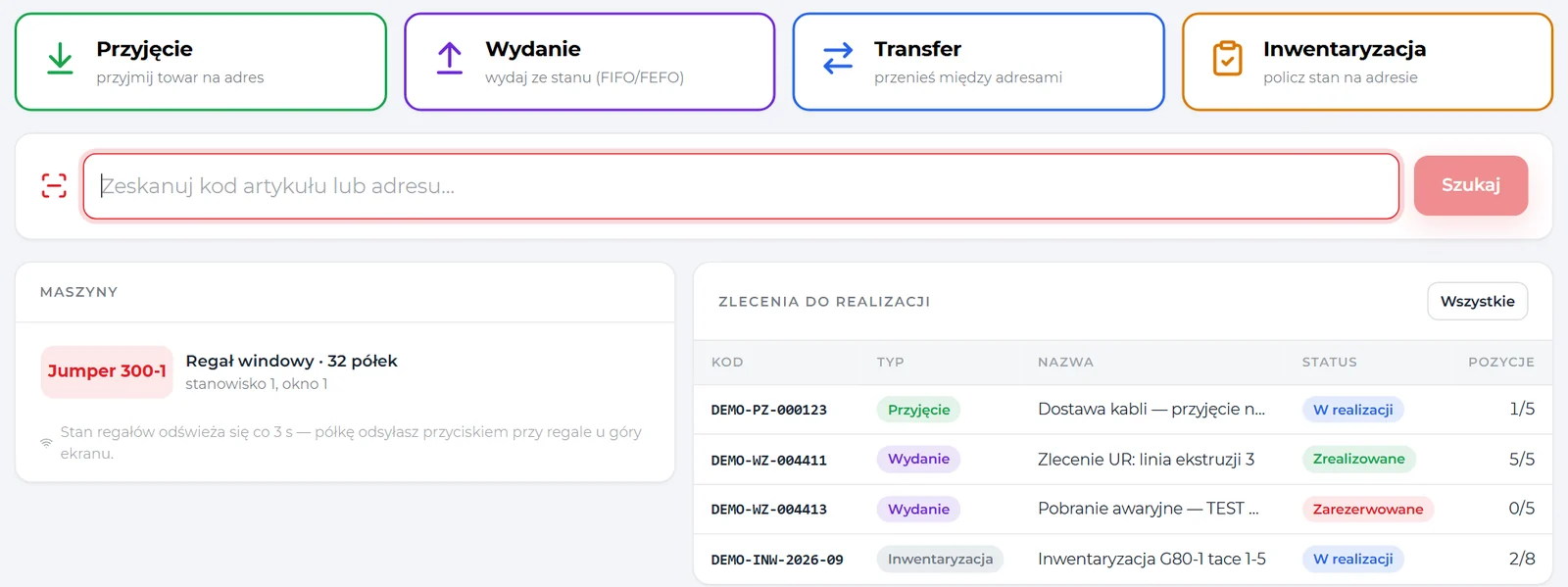
Four buttons and a scanner at the VLM
The same screen on the computer at the VLM works as a kiosk: an address with a workstation token, an optional lock to the computer's address and its own login rules. One screen can serve two VLMs.
- Scanner as a keyboard item code or cell address; Enter opens the item card.
- Live VLM status free, tray moving, tray at the workstation, returning — and a button to send the tray back.
- Orders at hand orders to execute and recent movements on the same screen.
An issue from a vertical lift module — try it yourself
A simulation of what happens at a VLM with SmartStock: tray recall, cell indication by LED strip and depth, the operator's OK and posting. Change the tray layout to see how the strip zones change. The data is sample data, and the tray takes 2 seconds here instead of 15–20.
- Scan or order lineThe operator scans an item and enters the quantity, or executes an order line. The software chooses the cell by FIFO, FEFO or LIFO.
- The tray arrivesThe task goes into the workstation queue. When the window is free, the VLM delivers the tray — in our rollout in 15–20 seconds.
- The cell lights upThe LED strip switches on the lights below the cell, the display shows the depth, and the machine screen: how many to take, the code, name and address.
- OK and postedThe operator takes the goods and presses OK on the panel or “Confirm” in the app. Only then does the stock level change and a history entry get created.
- Next or returnNext line from the same tray — the indication moves, the tray stays put. From another one — the tray goes back and the next one arrives.
When there is not enough stock, the software shows how much there is — nothing is split silently. A movement that did not post after the OK waits in the workstation queue with an error description: to be posted or skipped.
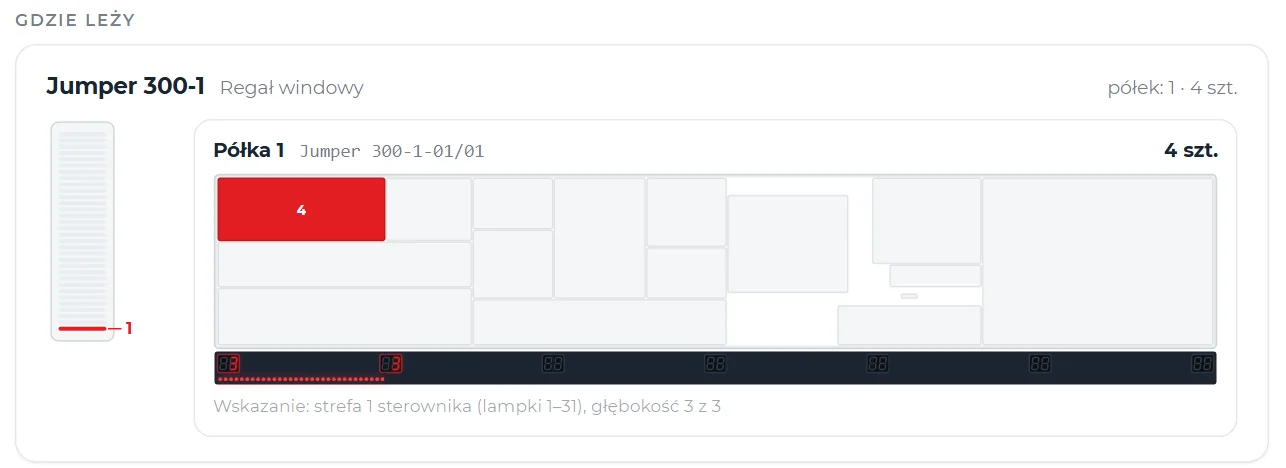
Where it is stored — without asking the storekeeper
The item card shows stock, reservations, minimum and addresses, and below that a thumbnail of the VLM and a map of the tray with the cell marked. From the card, one click away: new order, stock by address, full history.
- Search by everything code, name, manufacturer reference, barcode.
- Fixed locations assigned items are the first suggestion at receipt.
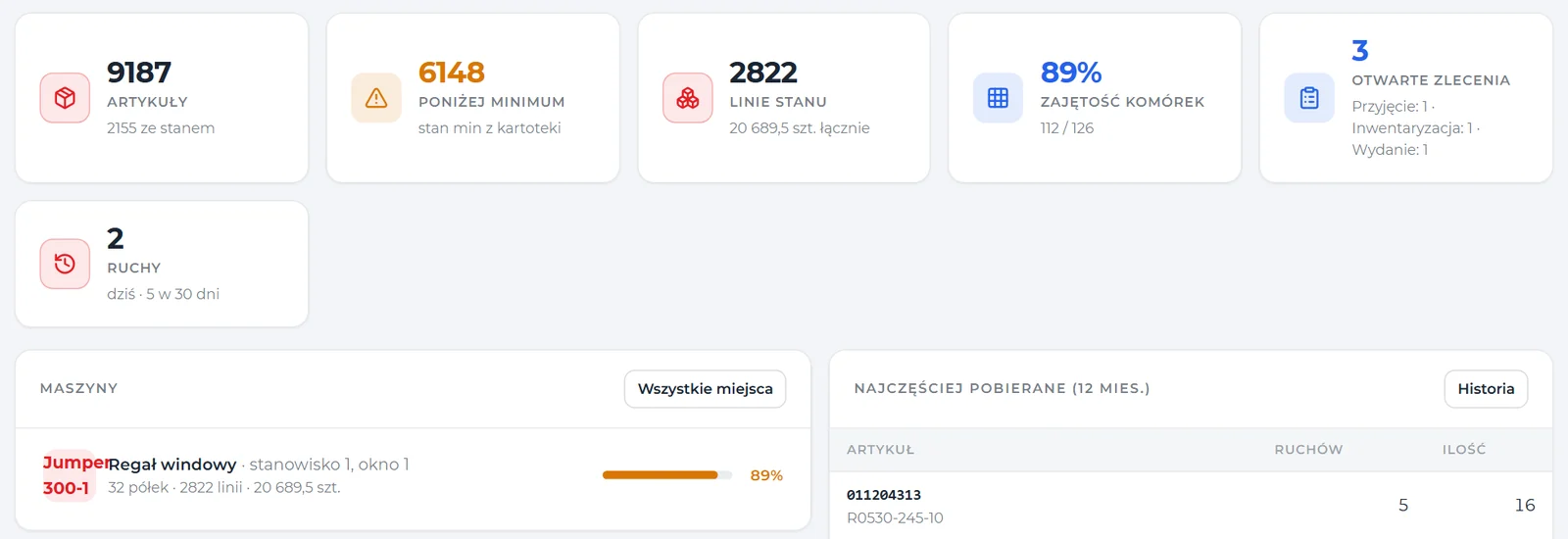
- Most picked a 12-month list on the dashboard — for planning locations close to the front.
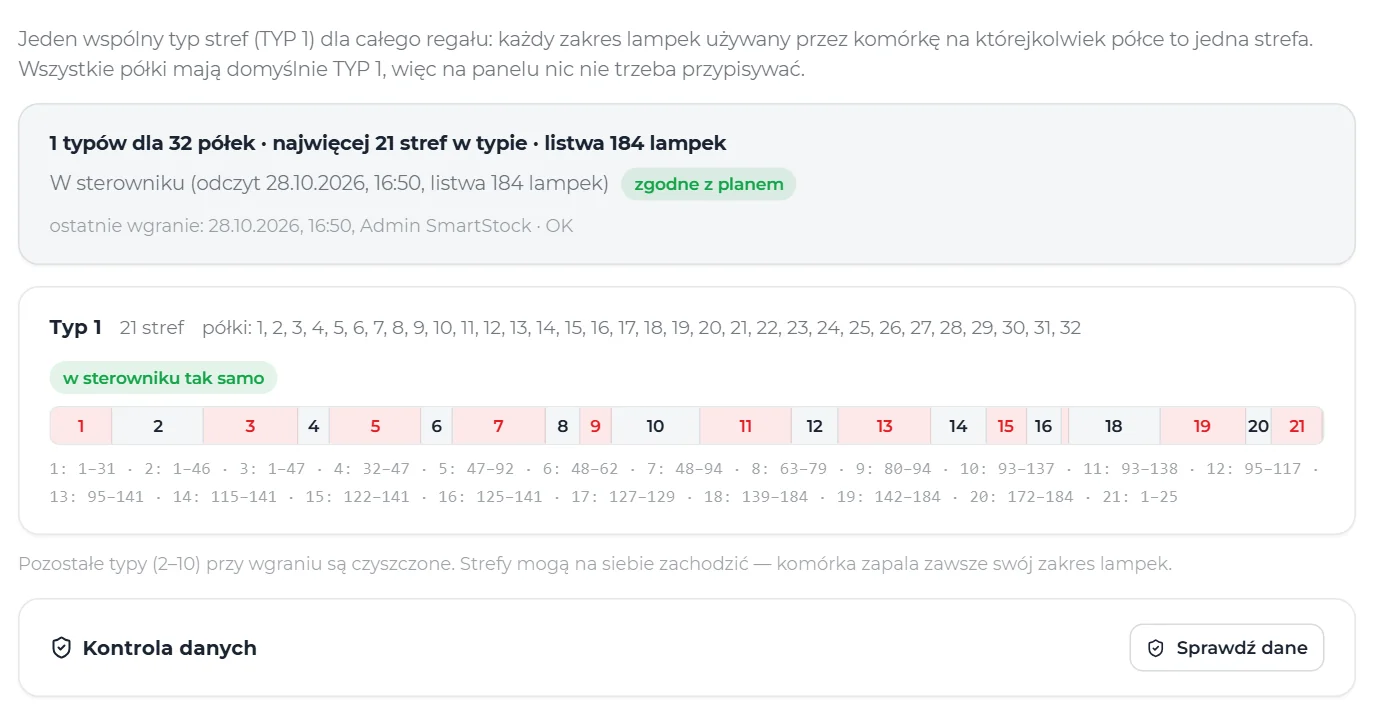
Tray map in millimetres, zones in the controller automatically
The administrator draws cells on the tray map: dragging, resizing, a 25 mm grid. Each range of lights used by a cell is one strip zone — after saving, it goes to the controller automatically, with a memory backup before and after the write and a read-back check.
- Strip calibration centre of the first and last light in millimetres; without it the lights are spaced evenly.
- Data check cells outside the tray, overlapping cells, the same indication for two cells, too deep, differences from the controller.
- Changing dimensions recalculates the maps of all trays in the VLM.
Dashboard, stock and deployment
Screenshots from the SmartStock app. The warehouse data in the screenshots is anonymised.
Server in your network, agent at the VLM
SmartStock runs on a server on the plant network. At the VLMs there is a computer with the agent — one service per VLM — and it is the only thing that talks to the controller.
What's planned
Works today: everything described above. We are still working on the items below — scope and timing are agreed at the audit.
PDF and CSV reports
stock levels, movements and orders to a file, without copying from the screen.
Shortages and requisitions
a list of what has fallen below minimum, as the basis for an order.
Domain login
Active Directory accounts instead of separate passwords.
Questions about SmartStock
We have G-Stock. What happens to our data?
SmartStock works on the G-Stock database schema and posts movements with the same semantics, so the item master, stock levels and history stay. User accounts can be imported from G-Stock.
Does the software have to be installed on every computer?
No. SmartStock runs in a browser. Installation is only needed on the server and on the computer at the VLMs, where the machine agent runs.
When does the stock level change?
At the vertical lift module, only after the operator's OK — on the machine panel or with the “Confirm” button in the app. A movement that did not post waits in the workstation queue with an error description.
How does the operator log in?
With an account and password, an RFID badge or a PIN — badge and PIN are enabled separately for the browser and for each kiosk. When idle, the app logs out on its own.
Does it work without an ERP?
Yes. Orders can come from the ERP or be created on site. Integration with an ERP or WMS is agreed at the audit.
Technical data
We agree the integration scope and configuration at the audit.
- Storage systems
- JUMPER vertical lift module — tray recall and return, cell indication by LED strip and depth
- Also
- TITAN vertical carousel and SILO stacker crane
- Movements
- receipt, issue (FIFO / FEFO / LIFO), transfer, stock count, execution of order lines
- Orders
- receipt, issue, transfer, return, stock count; source ERP or local
- Tracking
- cell address, batch, expiry date, reservations, minimum stock level
- Serial numbers
- on movements
- Login
- account, RFID badge, PIN; automatic logout; administrator, operator and viewer roles
- Languages
- Polish, English, French
- Runs
- in the browser — office and kiosk at the VLM; server on the plant network
- Machine connection
- the agent at the VLM connects to the server itself; the server never connects to the controller
- Data
- G-Stock database without migration; G-Stock accounts can be carried over
- Integration
- ERP or WMS via SmartSync, scope agreed at the audit
- Quote
- after the audit
Interested? Book a demo
Tell us what you need. We will show you how SmartStock works and prepare a quote — or pick a time for a call right away.
- A short callAbout what you need and how things look today.
- DemoSmartStock using your own examples.
- ProposalRollout scope and quote.